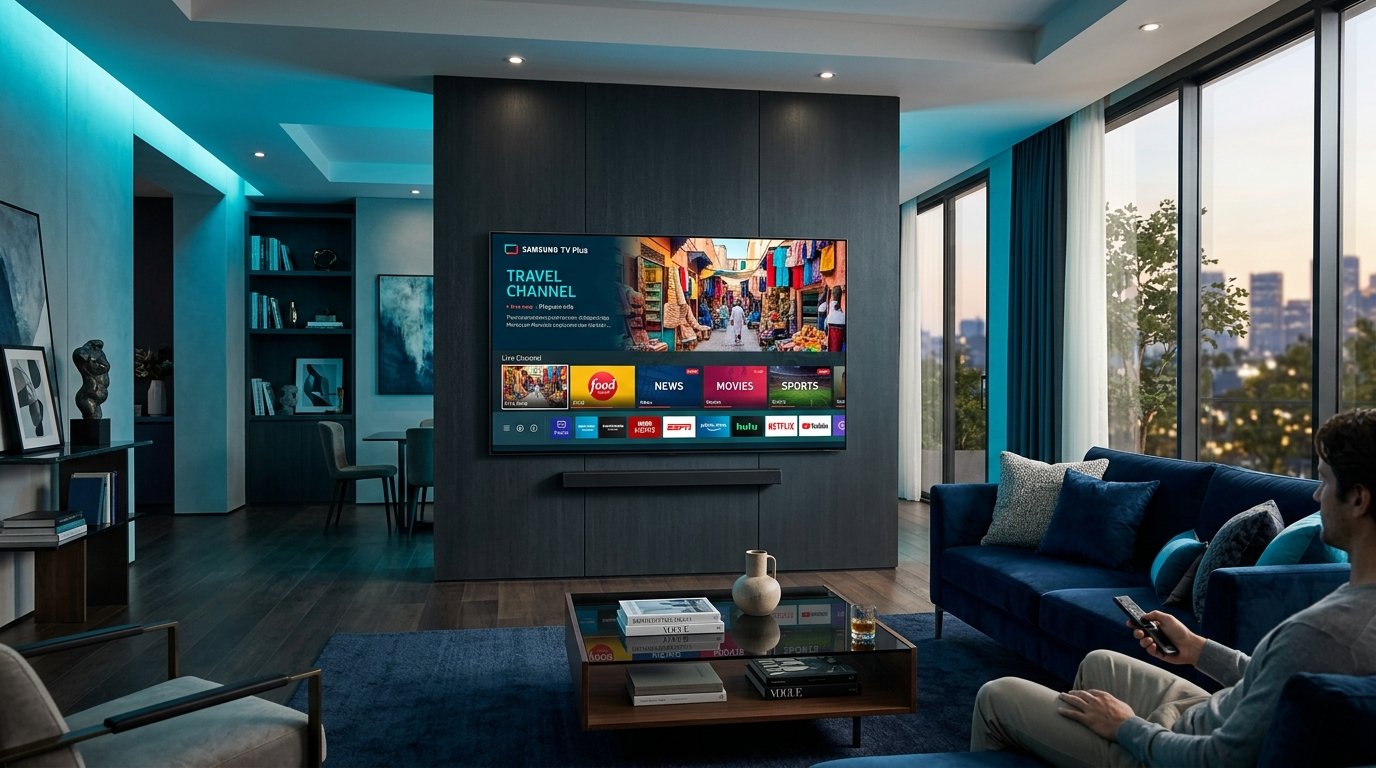
Streaming IPTV on Samsung Smart TV (Tizen OS) and LG Smart TV (webOS) offers the cleanest living room setup possible. You don't need external HDMI dongles, extra power adapters, or cluttered remote controls. By installing a verified, native IPTV player directly from the Samsung Smart Hub or LG Content Store, your television transforms into an enterprise 4K broadcast hub in minutes.
Because Samsung and LG use proprietary operating systems rather than Google Android, you cannot sideload standard Android APKs. Instead, modern Smart TV IPTV setup relies on cloud MAC activation portals. In this comprehensive 2026 guide, we walk you through installing IBO Player (the #1 rated player for Samsung & LG) and pairing it with your Eternal iptv subscription.
Top Native IPTV Players for Samsung & LG Smart TVs
| Player Application | Platform Support | Key Strengths | Activation Cost |
|---|---|---|---|
| IBO Player (Recommended) | Samsung Tizen & LG webOS | Ultra-fast channel switching, clean dark interface, 4K HDR support | 7-day free trial, then ~$8 lifetime |
| Nanomid Player | Samsung 2017+ & LG webOS 3.0+ | Built-in VPN capability, parental controls, multi-language audio | 14-day free trial, then ~$10 lifetime |
| Smart STB | All Samsung & LG Models | MAG set-top box emulation, classic cable portal look and feel | Monthly or lifetime license option |
Step-by-Step: Installing IBO Player on Samsung Smart TV
- Press the Home button on your Samsung TV remote to bring up the Smart Hub ribbon.
- Navigate left to the Apps icon and press Enter.
- Select the search magnifying glass in the top-right corner and type "IBO Player".
- Select the official app icon and click Install.
- Once installation finishes, click Open.
Step-by-Step: Installing IBO Player on LG Smart TV
- Press the Home button on your LG Magic Remote to open the webOS launcher.
- Select the LG Content Store (or LG Apps on webOS 23/24).
- Search for "IBO Player" using the on-screen keyboard.
- Click Install. The app will download directly to your application bar.
Step 3: Finding Your Device MAC Address & Device Key
When you launch IBO Player for the first time on your Samsung or LG TV, you will see a welcome screen displaying two unique device identifiers:
- Device MAC Address: Formatted as six pairs of characters, e.g.
D4:3A:C2:59:E1:9F. - Device Key: A unique 6-digit or 8-digit security PIN generated by the app, e.g.
78K-PJ2-4MQ.
Step 4: Uploading Your Eternal iptv Playlist Online
- Open your computer or mobile web browser and go to the official portal: iboplayer.com/device/login.
- Enter your TV's Device MAC Address and Device Key, then click Login.
- Click the blue button labeled "Add XC Playlist" (Xtream Codes).
- In the pop-up modal, fill in your details:
- Playlist Name:
Eternal iptv 4K - Server URL: Enter the server URL from your activation email (e.g.
http://line.eternal-iptv.shop:8080). - Username & Password: Enter your Eternal iptv subscriber credentials.
- Playlist Name:
- Click Save. Return to your television screen and press the Reload (or OK) button on your remote.
Your TV will instantly sync with our Anti-Freeze edge servers, populating over 45,000 live channels and categorizing films and sports events with posters and synopses.
Troubleshooting Smart TV IPTV Issues
App crashes on channel selection:
Samsung and LG televisions have limited onboard cache memory compared to set-top boxes. If the app slows down, navigate to your TV's Settings → Support → Device Care and run a memory cleanup to clear background applications.
Audio plays but screen is black:
Inside IBO Player Settings, switch the video player engine from Player 1 (Hardware) to Player 2 (VLC/Software). This resolves format decoding mismatches on older 2018–2020 Smart TV chipsets.
Ready to Stream 52,500+ Live Channels with Zero Buffering?
Experience Eternal iptv's dedicated NovaCast Ultra™ infrastructure. Get instant access to ultra-HD sports, 4K movies, and 24/7 technical customer support.