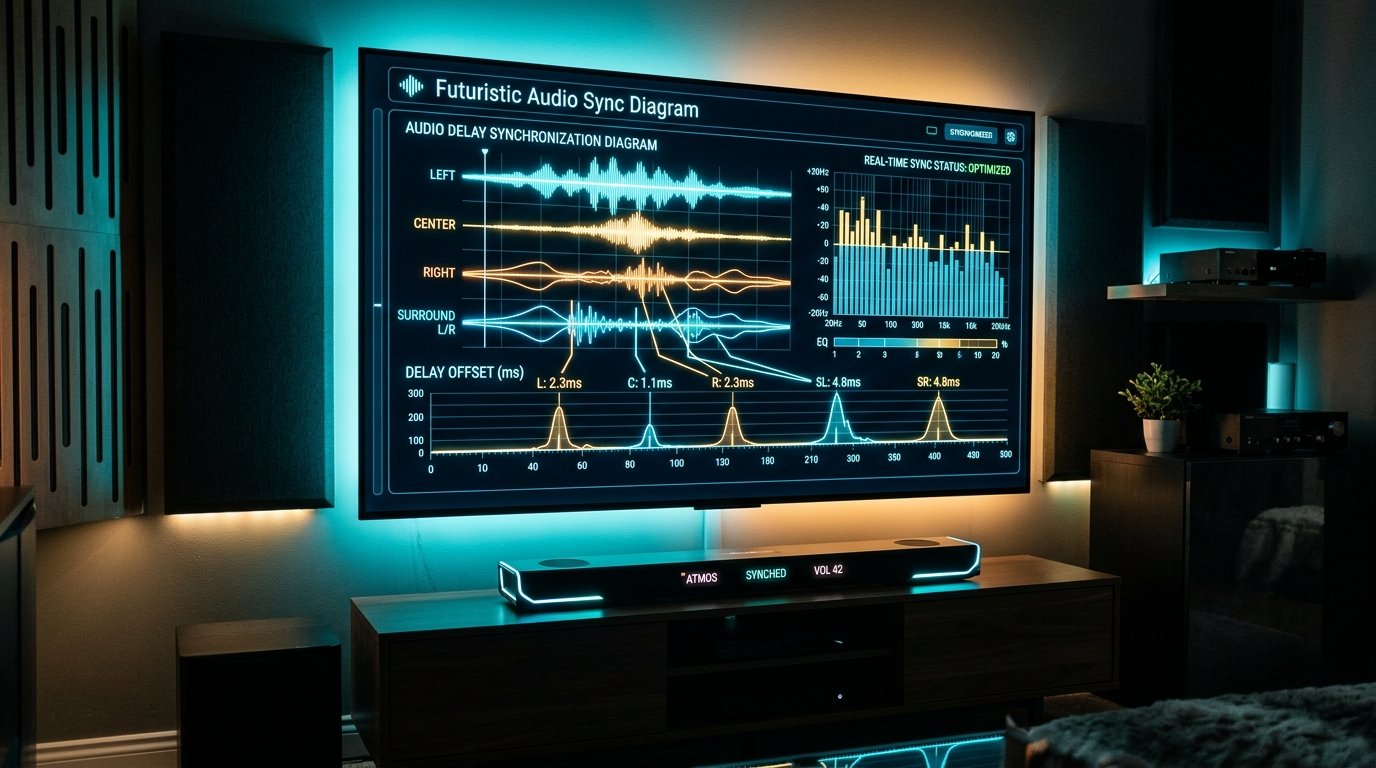
Few streaming problems are more distracting than IPTV audio out of sync. When watching live sports or fast-paced dialogue, seeing a presenter's lips move a half-second before hearing their voice completely ruins the immersion. While many users assume audio delay is caused by the IPTV server, in over 90% of cases, it is actually triggered by local hardware decoding latency, Bluetooth speaker buffers, or HDMI audio format mismatches.
In this 2026 engineering walkthrough, our technical team breaks down the root causes of IPTV lip-sync lag and provides exact, step-by-step calibration instructions for TiviMate, Fire TV, and Smart TVs.
The 4 Primary Causes of IPTV Audio Desynchronization
| Underlying Root Cause | Technical Explanation | Quickest Solution |
|---|---|---|
| Hardware vs. Software Decoding | CPU takes longer to render video frames than audio samples | Switch video decoder to Hardware (HW) in player settings |
| Soundbar / AV Receiver Processing | External soundbar introduces 80–200ms processing delay | Adjust Player Audio Offset (+/- ms) to align sound |
| Bluetooth Audio Latency | Wireless Bluetooth codecs (SBC) carry native 150ms latency | Use wired HDMI eARC or low-latency aptX Bluetooth |
| Frame Rate Mismatch (50Hz vs 60Hz) | TV refresh rate drifts out of sync with broadcast clock | Enable Auto Frame Rate (AFR) matching in TV settings |
Solution 1: Calibrating Audio Offset in TiviMate (Best Fix)
If you use TiviMate IPTV Player, you have access to a millisecond-precision audio delay calibration slider:
- Play the channel that is exhibiting audio delay.
- Press the Center / OK button on your remote → click the Settings (gear) icon on the bottom playback bar.
- Select Audio → Audio delay.
- Use the Left and Right directional arrows to nudge audio timing:
- If voice comes after lips move: Decrease offset (e.g.
-100msto-250ms). - If voice comes before lips move: Increase offset (e.g.
+100msto+200ms).
- If voice comes after lips move: Decrease offset (e.g.
- Check the box labeled "Apply to all channels" so the fix persists across your entire playlist.
Solution 2: Adjusting Audio Decoders in IPTV Smarters Pro
- From the Smarters home menu, open Settings → Player Settings.
- Locate the Audio Decoder setting.
- If currently set to Software, toggle to Hardware (or vice-versa).
- Return to live playback. Hardware decoding offloads audio stream decompression to your TV's dedicated DSP chip, ensuring perfect frame synchronization.
Solution 3: Fixing Firestick Sound Delay in Fire TV Settings
- On your Amazon Firestick, go to Settings → Display & Audio.
- Select Audio → AV Sync Tuning.
- A calibration animation with a bouncing ball and sound flash will play. Follow the on-screen slider until the audio beep aligns exactly with the ball passing the marker line.
- Press the Play/Pause button to save your system calibration.
Ready to Stream 52,500+ Live Channels with Zero Buffering?
Experience Eternal iptv's dedicated NovaCast Ultra™ infrastructure. Get instant access to ultra-HD sports, 4K movies, and 24/7 technical customer support.